Bottleneck Calculator: Check CPU & GPU Performance Balance
Is your gaming PC underperforming? Our free Bottleneck Calculator instantly checks whether your CPU or GPU is limiting performance. Enter your system specifications to detect hardware bottlenecks, compare CPU-GPU combinations, and build a perfectly balanced PC for smoother gameplay and higher FPS.
Hardware Configuration
Free AnalysisUnderstanding Bottleneck Results
| Result | Meaning | Action |
|---|---|---|
| 0–10% | Balanced | You’re good to go! |
| 10%–25% | Minor Imbalance | Small tweak recommended. |
| 25%–40% | Significant | Targeted upgrade advised. |
| 40%+ | Major Bottleneck | Serious performance loss. |
What is a Bottleneck Calculator?
A Bottleneck Calculator is a smart online tool that helps you understand how well your PC parts work together. Every computer has a mix of components like the CPU, GPU, RAM, and storage, and if one of them is slower than the others, it can hold your system back. This is called a bottleneck.
A PC bottleneck happens when one component in your system limits the performance of another component. In most gaming PCs, bottlenecks occur between the CPU (processor) and the GPU (graphics card).
Why Does a Bottleneck Calculator Matter?
- Improves gaming performance by identifying the component that is limiting frame rates, reducing lag, stuttering, and performance drops.
- Saves money by recommending only the upgrades you actually need instead of replacing perfectly capable hardware.
- Optimizes system efficiency so your CPU and GPU can operate closer to their full potential.
How to Use a Bottleneck Calculator (Step-by-Step)
Choose CPU and GPU
Use the dropdowns to select your exact models.
Enter RAM and Storage
Input your RAM size and type of storage (HDD, SSD, NVMe).
Select Resolution
This matters more than you think higher res = more GPU demand.
Choose Usage Purpose
Gaming? Streaming? Video editing?
Click Calculate
Get your bottleneck % and interpretation.
Why RAM, Storage, and Resolution Matter Too
Most calculators skip this, but you shouldn’t.
RAM
Aim for a minimum of 16GB for gaming and at least 32GB for creative work.
Storage
NVMe SSDs provide the fastest boot and load times, while traditional HDDs can noticeably slow your system.
Resolution
1080p places less stress on the GPU, whereas 4K heavily loads the graphics card with minimal CPU bottleneck.
What is a Bottleneck?
To understand the bottleneck, just think of your pc like a highway. Let’s consider that your CPU, GPU, RAM, and storage are all vehicles on the same road. So if one car slows down, it causes a traffic jam. That traffic jam is your bottleneck.
Let’s consider it through a real real-world example. Let’s say you’re using an RTX 4070 but still gaming on a 10-year-old Intel i3. Your GPU is waiting for the CPU to send it data. That waiting time causes lower frame rates, stutters, and lag, even though the GPU isn’t the problem.
Typical Signs Your System Has a Bottleneck
Common Types of PC Bottleneck
Why Use Our PC Bottleneck Calculator
There are lots of bottleneck calculators on the internet, but our trusted bottleneck calculator differs in the following respects:
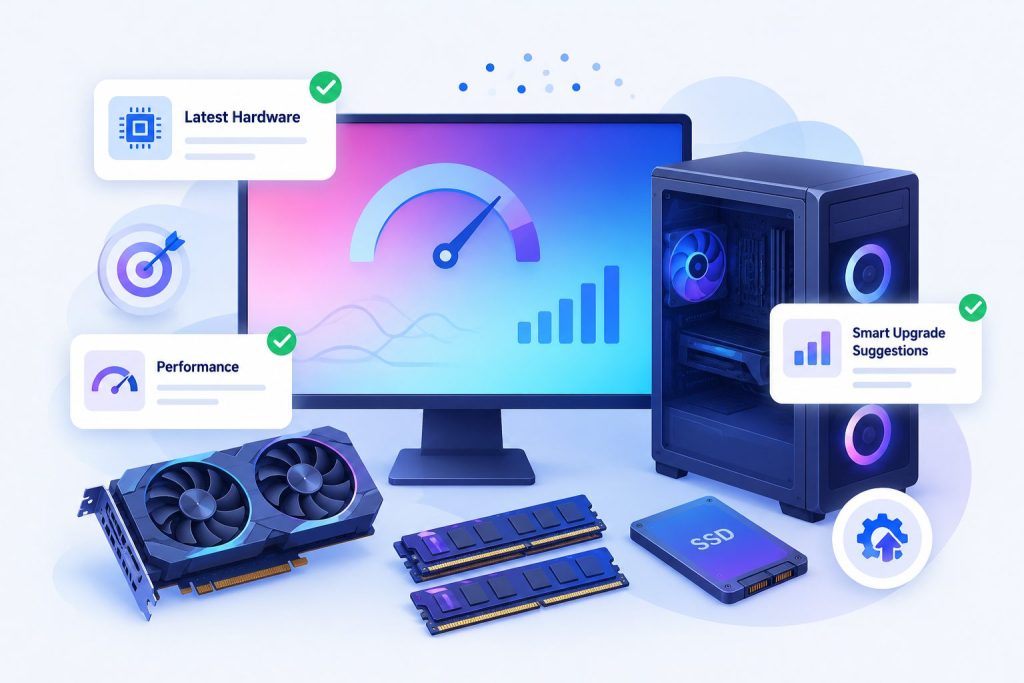
Eliminate PC Bottlenecks Now
Get help from our bottleneck calculator to detect CPU and GPU performance issues, optimize and speed up your PC immediately.

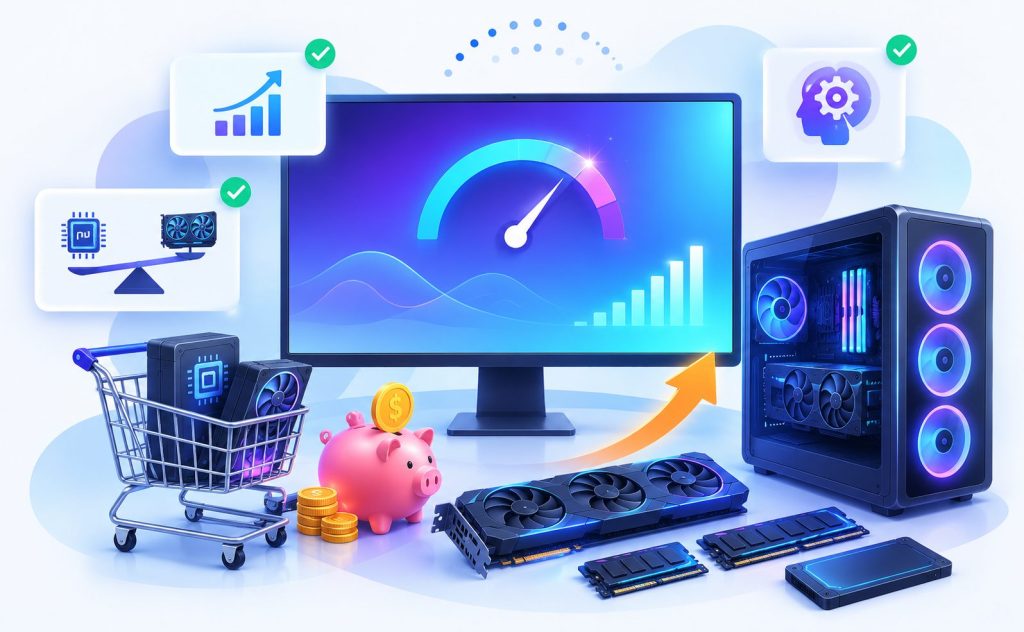
Make Smarter Choices When Buying or Upgrading Hardware
What Most Calculators Analyze
| Component | What It Does | Why It Matters |
|---|---|---|
| CPU | Processes data and game logic | A slow CPU can bottleneck a high-end GPU |
| GPU | Renders images and video | If too weak, it struggles in modern games |
| RAM | Supports multitasking | Too little causes constant background swapping |
| Storage | Loads data into RAM | NVMe > SSD > HDD for speed |
| Resolution | Affects GPU workload | 4K puts far more strain than 1080p |
Real-Life Examples of Reducing PC Bottlenecks
Reducing bottlenecks isn’t just about upgrading parts, it is about making smart, balanced improvements. Here are a few real examples of how simple changes can make a big difference
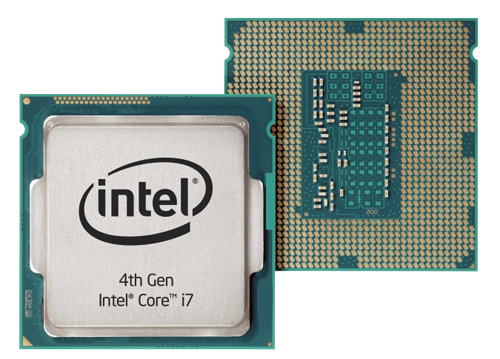
Upgrading the CPU PC Bottleneck Calculator
Common Causes of CPU Bottleneck
- Low clock speed or limited CPU cores
- Too many background applications
- Poor cooling causing thermal throttling
How do You Fix a CPU Bottleneck?
- Lower draw distance, shadows, and AI features in games.
- Close background apps.
- Upgrade to a multi-core CPU with better single-thread speed
Common Causes of GPU Bottleneck
- Entry-level or outdated graphics card
- High-resolution or ultra graphics settings
How do You Fix a GPU Bottleneck?
- Lower the resolution or graphics quality.
- Turn off RTX or ray tracing.
- Consider upgrading to a newer card with more VRAM.
Common Causes of RAM Bottleneck
- Not enough total RAM for modern games or apps
- Running in single-channel mode instead of dual-channel
- Low RAM speed (MHz) holding back the CPU
- Too many browser tabs or background programs open at once
Common Causes of Storage Bottleneck
- Still using a traditional HDD instead of an SSD/NVMe
- Drive nearly full, which slows read and write speeds
- Older SATA interface instead of faster NVMe/PCIe
- Fragmented or aging drive with worn-down performance
How to Fix RAM or Storage Bottlenecks?
- Increase from 8GB to 16GB of RAM.
- Upgrade to an SSD or NVMe for much faster load times.
Bottleneck Calculator for Games: Performance by Game Type
Some calculators provide game-based bottleneck analysis. These tools help with different types of games, since the CPU and GPU carry very different workloads depending on what you are playing:
These games run the highest FPS of any genre, so single-core performance and clock speed matter more than anything else. The CPU directly impacts your FPS and input lag, and in competitive play, every millisecond is a real disadvantage. Our gaming FPS calculator shows CPU performance is the main factor in pushing past 300 FPS in titles like Valorant and CS2.
These games load both the CPU and GPU heavily. The CPU handles NPC AI, physics simulation, and streaming assets into the open world, while the GPU handles resolution and rendering quality. At Ultra settings, a GPU bottleneck shows up often but these titles are also known for serious CPU bottlenecks, where even a great GPU can suffer frame time spikes, low 1% lows, and unstable performance.
Running OBS on top of a game adds a heavy CPU load. Without hardware encoding, the CPU has to handle both video encoding and game logic at the same time, which makes CPU bottlenecks far more noticeable. CPU utilization drops significantly when streaming with an NVIDIA RTX GPU using the NVENC hardware encoder instead of relying on the CPU alone.
At 4K resolution, the GPU becomes the limiting factor on most PCs because of the sheer rendering demand; this is expected and not a sign of a poorly built system. If you are building locally, the best value graphics cards right now are NVIDIA’s RTX 5090 and AMD’s RX 9070 XT, both of which handle 4K without giving up significant FPS.
Tips for Keeping Your PC Balanced
- Regularly update GPU and CPU drivers, and the BIOS
- Use HW Monitor or Afterburner to check usage stats
- Keep your PC clean and cool because dust affects performance
- Always check component compatibility before upgrading
Conclusion
Your GPU won’t perform well if your CPU can’t keep up. A fast CPU won’t be effective if your storage is a slow HDD. That’s why smart PC users use bottleneck calculators. Check them before every upgrade. Think of them as a pre-flight checklist for your next PC build or optimization session.
A well-balanced PC ensures maximum gaming performance without unnecessary hardware limitations.
Frequently Asked Questions
Over ten percent is typically considered too high. The greater the percentage, the more slowdowns you will observe.
There are bottleneck calculators available. Just input your system specifications, and it will indicate which component is the reason for a slowdown.
Yes, either the CPU or the GPU can bottleneck your system if one component limits the performance of the other.
Shut down other applications and lower in-game settings. In worst cases, it could also mean upgrading your CPU, especially when dealing with bad bottlenecks.
You can check CPU and GPU compatibility by comparing the CPU generation, core count, GPU performance level, system RAM, and display resolution. These factors help determine whether your hardware works well together. A CPU GPU compatibility checker quickly analyzes your components and shows if your setup is balanced or likely to cause a bottleneck.
Start with identifying the bottleneck first. From there, performance values can be evaluated, and a bottleneck calculator can be used to find the weaker component.
No, it’s predictive. Use it before or after buying hardware, not during gameplay. For real-time tracking, use MSI Afterburner or HWInfo.
Any time you:
- Add/upgrade a component
- Change display resolution
- Plan a major PC build
Not really. You’ll probably never notice it unless you’re benchmarking or pushing ultra settings. Anything under 15% is usually fine.
Laptops have integrated components that can’t be upgraded, so they’re mostly useful for diagnosing rather than fixing.
A GPU usually offers more immediate performance benefits in gaming. But if your CPU is 5+ years old, it’s probably time to upgrade it.
Yes. A severe CPU bottleneck can reduce frame rates and cause inconsistent performance in games.