
PC Bottleneck Calculator
Hardware Configuration
Free AnalysisAnalysis Results
PC Bottleneck Calculator – Check CPU & GPU Compatibility Instantly
Use our PC bottleneck calculator to analyze your hardware configuration and find out your CPU or GPU is limiting your gaming performance. Quickly test different combinations and discover the best CPU-GPU pairing for a balanced PC build.
What Is a Bottleneck Calculator?
A Bottleneck Calculator is a smart online tool that helps you understand how well your PC parts work together. Every computer has a mix of components like the CPU, GPU, RAM, and storag and if one of them is slower than the others, it can hold your system back. This is called a bottleneck.
A PC bottleneck happens when one component in your system limits the performance of another component. In most gaming PCs, bottlenecks occur between the CPU (processor) and the GPU (graphics card).
For example, a powerful GPU like an RTX-series card paired with a weak processor may cause a CPU bottleneck, reducing the frame rate and overall gaming performance.A bottleneck calculator helps you determine whether your CPU and GPU are balanced for the best performance.
How It Works
Start by selecting your CPU GPU bottleneck calculator and RAM from the dropdown menus. You can also add storage and power supply details for a more accurate result.
Our calculator analyzes how each component performs together. It checks where your system might be unbalanced like if your processor can’t keep up with your graphics card.You’ll see a clear, easy-to-read report showing which part of your PC is creating a bottleneck. You’ll also get simple upgrade suggestions to make your system smoother and faster.The bottleneck calculator analyzes key hardware factors such as CPU processing power, GPU performance, screen resolution (1080p, 1440p, 4K), game workload, graphics settings, and overall system configuration. By comparing these components, it estimates whether your PC is CPU-limited or GPU-limited, helping you identify potential performance bottlenecks
PC Bottleneck Calculator
Is your high-end gaming pc not performing like it should? You’ve got the RAM, the GPU, the SSD, but it still stutters? You’re likely dealing with a bottleneck, and a bottleneck calculator can help you fix it before wasting money on the wrong upgrade.
We’ll break it all down: what bottlenecks are, how they affect your system, how to use a calculator effectively, and most importantly, how to fix them.
Signs Your PC Has a Bottleneck
0%–10% Excellent Bottleneck:
No performance issues, no upgrades needed.
10%–25% Good/Fair Bottleneck
Minor slowdowns in demanding tasks, review CPU/GPU benchmarks.
25%–40% Poor Bottleneck:
Noticeable performance limitations. Component upgrade is recommended.
How to Use a Bottleneck Calculator (Step-by-Step)
- 1. Choose CPU and GPU: Use the dropdowns to select your exact models.
- 2. Enter RAM and Storage: Input your RAM size and type of storage (HDD, SSD, NVMe).
- 3. Select Resolution: This matters more than you think higher res = more GPU demand.
- 4. Choose Usage Purpose: Gaming? Streaming? Video editing?
- 5. Click Calculate: Get your bottleneck % and interpretation.
Understanding Bottleneck Results
| Result | Meaning | Action |
|---|---|---|
| 0–10% | Balanced | You’re good to go! |
| 10%–25% | Minor Imbalance | Small tweak recommended |
| 25–40% | Significant | Targeted upgrade advised |
| 40%+ | Major Bottleneck | Serious performance loss |
CPU Bottleneck vs. GPU Bottleneck
- CPU Bottleneck: When the CPU cannot provide data to the GPU quickly enough. This is common in strategy games or simulators.
- GPU Bottleneck: When the graphics card cannot render frames fast enough. This often happens in modern AAA games at higher resolutions or ultra graphics settings
Why RAM, Storage, and Resolution Matter Too
Most calculators skip this, but you shouldn’t.
- RAM: Aim for a minimum of 16GB for gaming and at least 32GB for creative work.
- Storage: NVMe provides the fastest boot and load times; HDDs slow everything down.
- Resolution: 1080p means less stress on the GPU, while 4K puts a high load on the GPU with minimal CPU bottleneck.
Typical Signs Your System Has a Bottleneck:
- Your GPU sits idle while your CPU is at capacity
- Sudden FPS drops during CPU-heavy tasks like open-world games or simulations
- Choppy gameplay or random stuttering, especially in demanding scenes
- One part of your system (CPU or GPU) is constantly at 100%, while the other barely works
What is a bottleneck?
To understand the bottleneck, just think of your pc like a highway. Let’s consider that your CPU, GPU, RAM, and storage are all vehicles on the same road. So if one car slows down, it causes a traffic jam. That traffic jam is your bottleneck.
Let’s consider it through a real real-world example. Let’s say you’re using an RTX 4070 but still gaming on a 10-year-old Intel i3. Your GPU is waiting for the CPU to send it data. That waiting time causes lower frame rates, stutters, and lag, even though the GPU isn’t the problem.
Understanding CPU & GPU Bottlenecks
A bottleneck happens when one component limits overall performance. This section is fully isolated and won’t affect other parts of your site.
CPU Bottleneck
The processor can’t keep up with game logic and system tasks.
- Low clock speed or few cores
- Too many background processes
- Poor cooling (throttling)
- Upgrade to a faster CPU
- Close unnecessary programs
- Improve cooling solution
GPU Bottleneck
The graphics card can’t handle the visual workload.
- Low-end graphics card
- High resolution settings
- Lower graphics settings
- Upgrade to a stronger GPU
Why Use Our PC Bottleneck Calculator
Our tool does more than just crunch numbers; it gives you real insights into how your PC performs. Here’s what you can expect:
- Spot potential performance issues before they impact your experience
- Evaluate how well your CPU and GPU work together
- Get upgrade suggestions customized to your specific setup
- Make smarter choices when buying or upgrading hardware
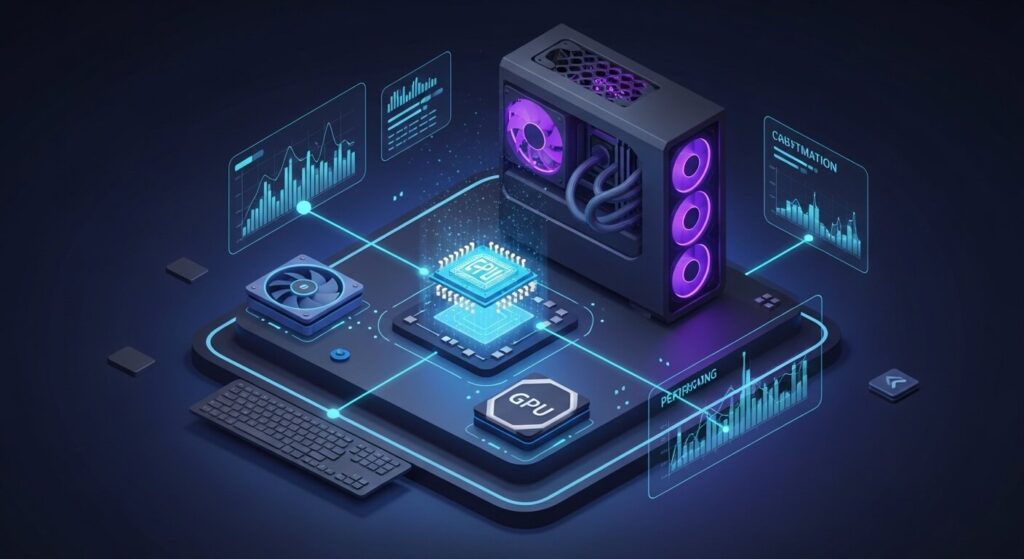
- CPU bottleneck
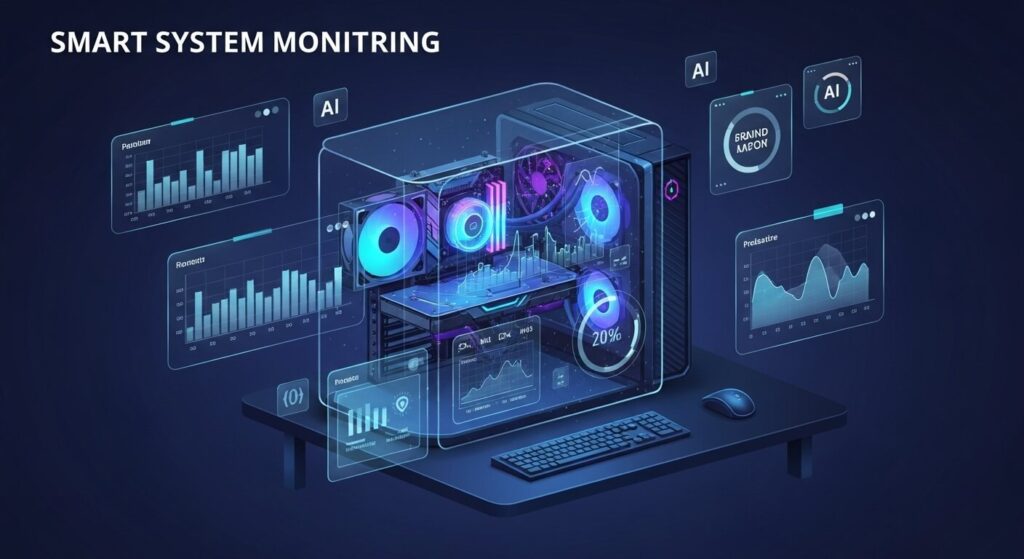
Make smarter choices when buying or upgrading hardware
- Save Money: With this calculator, you can easily know which part needs to be upgraded. You don't need to blindly upgrade parts
- Save Money: With this calculator, you can easily know which part needs to be upgraded. You don't need to blindly upgrade parts
- Boost productivity: Better hardware balance means faster loading, rendering, and multitasking.
What Most Calculators Analyze
| Component | What It Does | Why It Matters |
|---|---|---|
| CPU | Processes data and game logic | A slow CPU can bottleneck a high-end GPU |
| GPU | Renders images and video | If too weak, it struggles in modern games |
| RAM | Supports multitasking | Too little causes constant background swapping |
| Storage | Loads data into RAM | NVMe > SSD > HDD for speed |
| Resolution | Affects GPU workload | 4K puts far more strain than 1080p |
Real-Life Examples of Reducing PC Bottlenecks
Reducing bottlenecks isn’t just about upgrading parts it’s about making smart, balanced improvements. Here are a few real examples of how simple changes can make a big difference
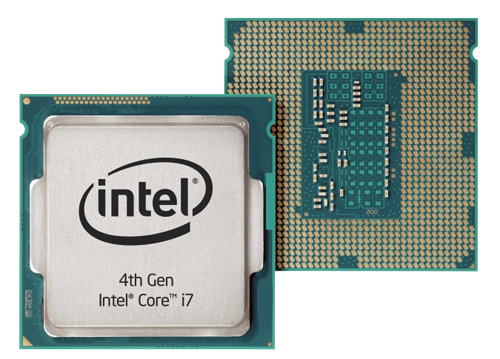
Upgrading the CPU
PC Bottleneck Calculator
- When a gamer paired an Nvidia RTX 3080 with an older Intel i5, their CPU couldn’t keep up, limiting frame rates. After upgrading to a Ryzen 7, the system ran smoother and FPS increased noticeably no more lag.
- Increasing RAM A video editor struggled with crashes while working on large files using only 8GB of RAM. Upgrading to 32GB (3200 MHz) fixed slow render times and allowed seamless multitasking.
- Improving Cooling One creator faced performance drops due to thermal throttling. Switching from a basic air cooler to liquid cooling kept the CPU temperature low and performance consistent during long gaming or rendering sessions.
How do you fix a bottleneck?
If you have a CPU bottleneck:
- Lower draw distance, shadows, and AI features in games.
- Close background apps.
- Upgrade to a multi-core CPU with better single-thread speed.

- Secure

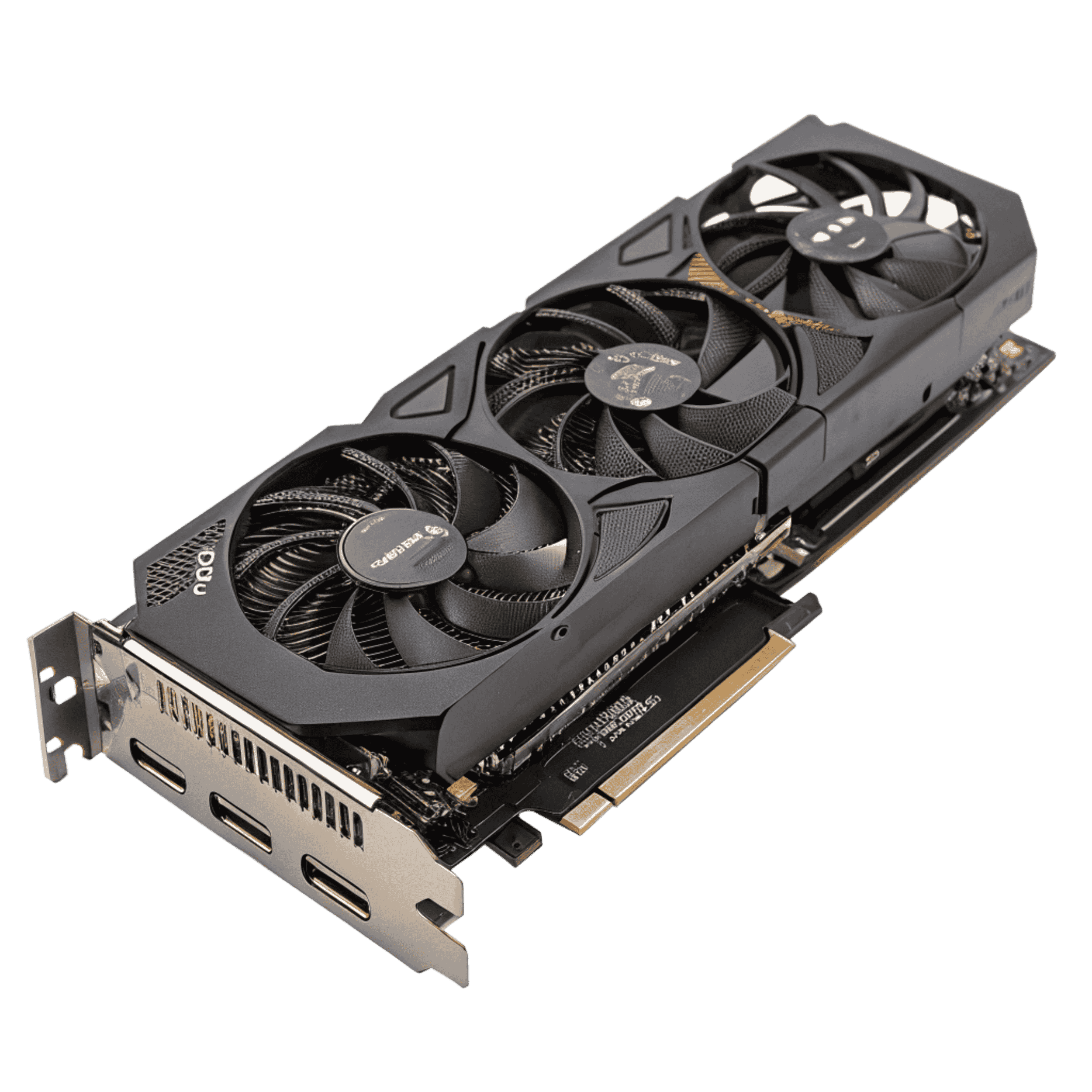
If you have a GPU bottleneck:
- Lower the resolution or graphics quality.
- Turn off RTX or ray tracing.
- Consider upgrading to a newer card with more VRAM.
For RAM or storage bottlenecks:
- Increase from 8GB to 16GB of RAM.
- Upgrade to an SSD or NVMe for much faster load times.
Bottleneck Calculators for Games
Some calculators provide game-based bottleneck analysis. These tools help with:
- Ensuring Warzone, GTA V, or Cyberpunk runs well
- Matching PC parts to the specific needs of a title
- Planning game-specific builds or upgrades
Top Tips for Keeping Your PC Balanced
- Regularly update GPU and CPU drivers, and the BIOS
- Use HWMonitor or Afterburner to check usage stats
- Keep your PC clean and cool because dust affects performance
- Always check component compatibility before upgrading
Some of you search for niche terms like bottleneck calculator, CPU agent, or specific tools like The Bottlenecker when troubleshooting performance issues. Although these names may differ, the main goal remains the same: to review the relationship between your components to find and fix hardware mismatches.
Conclusion
Your GPU won’t perform well if your CPU can’t keep up. A fast CPU won’t be effective if your storage is a slow HDD. That’s why smart PC users use bottleneck calculators. Check them before every upgrade. Think of them as a pre-flight checklist for your next PC build or optimization session.
A well-balanced PC ensures maximum gaming performance without unnecessary hardware limitations.
- FAQ
Everything You Need to Know About the Bottleneck
Over ten percent is typically considered too high. The greater the percentage, the more slowdowns you will observe.
It is when one component restricts the full utilization of another component. For example, your CPU or GPU impacts slower parts and leads to performance issues.
There are bottleneck calculators available. Just input your system specifications, and it will indicate which component is the reason for a slowdown.
Yes, either the CPU or the GPU can bottleneck your system if one component limits the performance of the other
Shut down other applications and lower in-game settings. In worst cases, it could also mean upgrading your CPU, especially when dealing with bad bottlenecks.
Shut down other applications and lower in-game settings. In worst cases, it could also mean upgrading your CPU, especially when dealing with bad bottlenecks.
You can check CPU and GPU compatibility by comparing the CPU generation, core count, GPU performance level, system RAM, and display resolution. These factors help determine whether your hardware works well together. A CPU GPU compatibility checker quickly analyzes your components and shows if your setup is balanced or likely to cause a bottleneck.
You can reduce a bottleneck by upgrading the weaker component in your system. Common solutions include upgrading the CPU or GPU, increasing system RAM, adjusting game resolution or graphics settings, and enabling performance optimization options. In most cases, improving the weaker hardware component provides the biggest performance boost.
Start with identifying the bottleneck first. From there, performance values can be evaluated, and a bottleneck calculator can be used to find the weaker component.
No, it’s predictive. Use it before or after buying hardware, not during gameplay. For real-time tracking, use MSI Afterburner or HWInfo.
Any time you:
- Add/upgrade a component
- Change display resolution
- Plan a major PC build
Not really. You’ll probably never notice it unless you're benchmarking or pushing ultra settings. Anything under 15% is usually fine.
Laptops have integrated components that can’t be upgraded, so they’re mostly useful for
diagnosing rather than fixing.
A GPU usually offers more immediate performance benefits in gaming. But if your CPU is 5+ years old, it’s probably time to upgrade it.
Yes. A severe CPU bottleneck can reduce frame rates and cause inconsistent performance in games.

Ryan
Founder at TestBottleneckCalculator
Ryan is the creator of TestBottleneck Calculator, a smart online tool designed to help PC enthusiasts identify and fix performance bottlenecks in their computer setups. With deep experience in hardware benchmarking, gaming optimization, and component compatibility, Ryan’s mission is to make system performance easy to understand for everyone from first-time builders to advanced users.